Where is Quick Actions on Mac? Finder and text tools
Quick Actions on Mac are available from a selected file’s Finder context menu and the Finder Preview pane. Select a file, Control-click it and look for Quick Actions; for selected text, use a compatible app’s Services menu or a shortcut configured to accept text. The actions shown depend on the selection, macOS version and enabled extensions.
Checked
What Quick Actions are on macOS
Quick Actions are a way to run a supported task on the item you already selected. For a file in Finder, that can mean turning images into a PDF, rotating an image or using an installed workflow. The useful starting point is the selected item, because macOS does not show one universal list that works on every file and every app.
Imagine you need to send a receipt. You have an image in Downloads, and the next step is a PDF attachment. A compatible Quick Action can shorten that route. Before applying an action, keep a copy if you are unsure whether the workflow edits the original or creates an output. Apple’s built-in actions and a third-party workflow can behave differently even when their labels sound similar.
The word “quick” also describes many unrelated buttons in apps. A browser’s selection menu, a text editor’s commands and Finder’s Quick Actions are different surfaces. If instructions say to open Quick Actions, first establish whether they refer to a file, selected text or a custom Shortcut. Looking in the wrong context is a common reason an action seems to be missing.
A practical test is to choose a local PNG image. Familiar image actions are easier to verify than a custom document workflow. Note what the menu offers, try the smallest change on a disposable copy, and inspect the result. That tells you whether the action is available and what it actually does before you use it on a large batch.
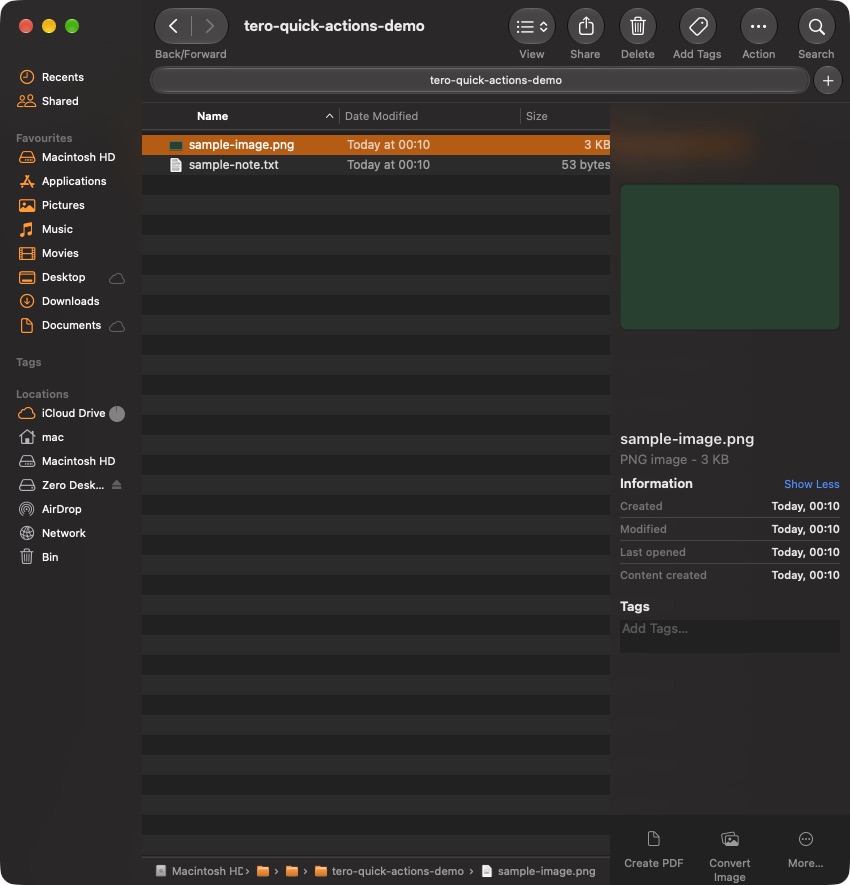
Where to find Quick Actions in Finder and its Preview pane
In Finder, select the file and Control-click it to open the context menu. Quick Actions contains the compatible actions for that selection. Try one downloaded file first. Selecting a folder, a different format or a mixed set of files can produce a different menu, so compare like with like when troubleshooting.
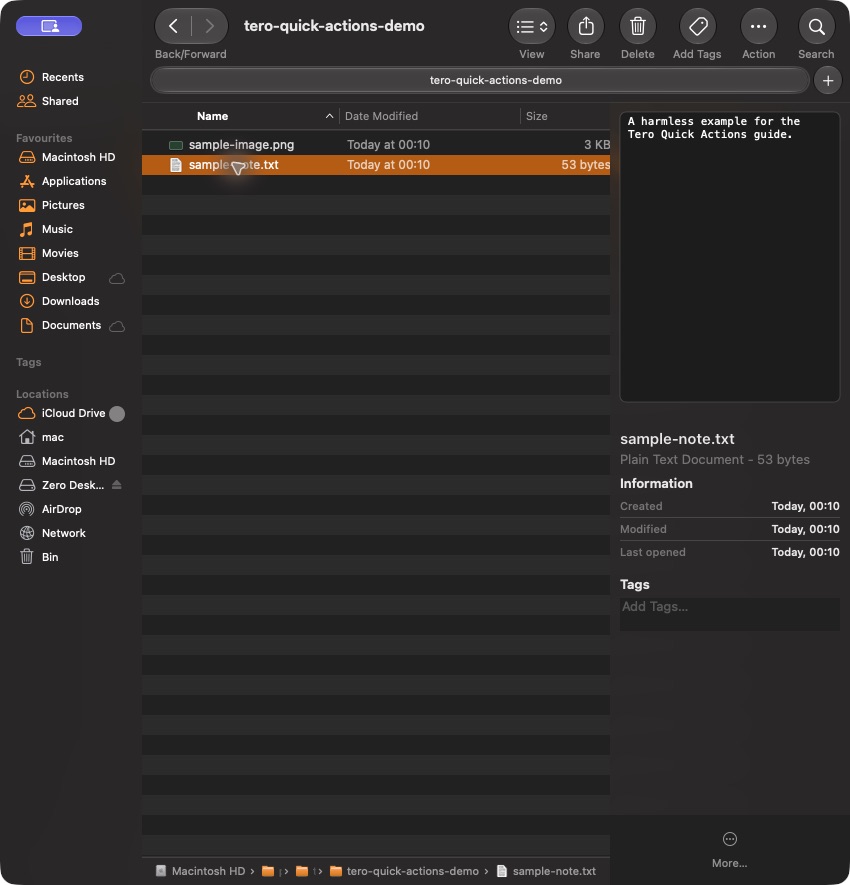
Finder also has a Preview pane. Choose View, then Show Preview if that pane is hidden. Compatible Quick Action buttons can appear below the preview. This is Finder’s preview interface, rather than the separate Preview application. The distinction matters: searching for a Quick Actions button inside Preview may lead you away from the actual menu you need.
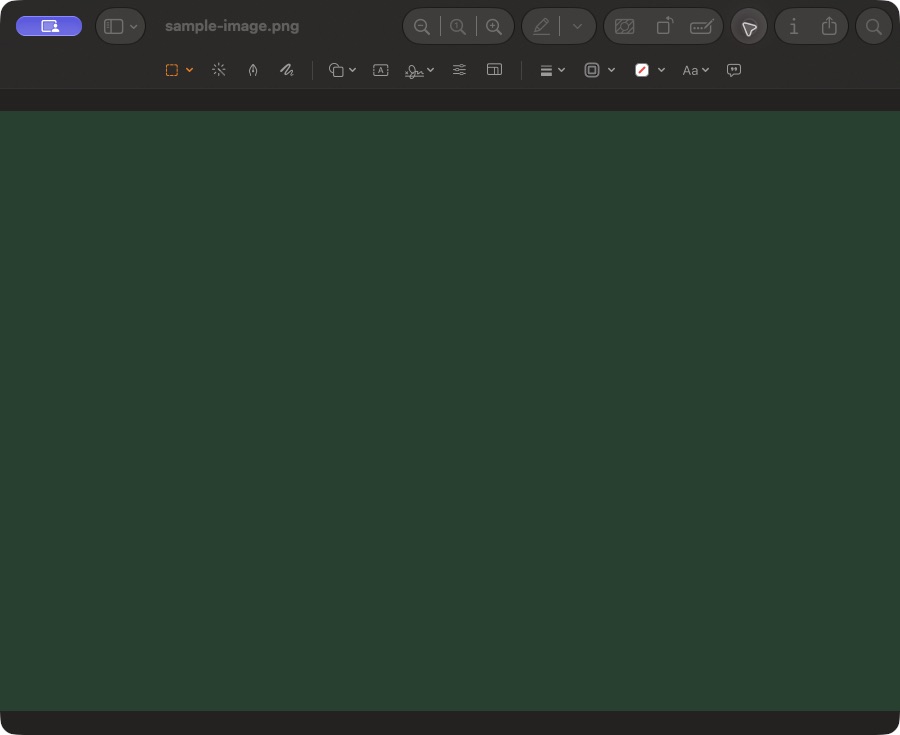
The Preview app has its own tools. For precise image dimensions, opening an image in Preview and using its size controls can be a better fit than a preset action in Finder. Our image resizing instructions explain the Tero workflow and the difference between a fixed size and a preserved aspect ratio. Choose the tool that exposes the options required by your task.
For a repeatable example, place a copied image in a small test folder, select it and examine both the context menu and the pane. If an action appears in one location but not the other, check the available customization rather than assuming the file is broken. Keep the folder simple while testing; unrelated files and a broad multi-selection make it harder to understand why the list changed.
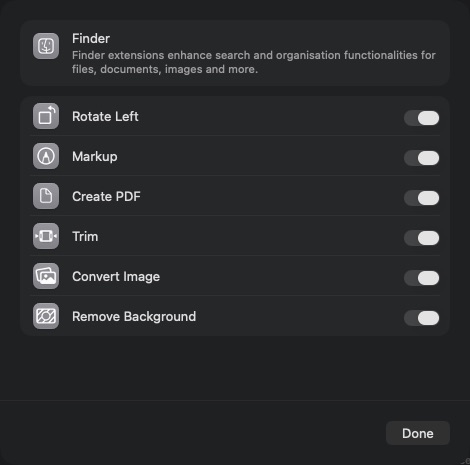
How to enable the relevant extensions in System Settings
On current macOS versions, Finder’s customization leads to extension settings associated with General, then Login Items & Extensions. Apple’s menu labels and grouping can vary between releases. Use the Finder action’s Customize option where available, or search System Settings for Extensions to reach the corresponding controls on your Mac.
Enable the extension that supplies the task you actually want. Installing an app does not mean every one of its extensions is automatically visible in every context. Conversely, enabling a Finder extension does not turn an unsupported file into a supported one. The extension’s input rules still apply, and some workflows need additional configuration in their own app.
If you recently updated macOS, revisit these settings before reinstalling several utilities. Record the action that is missing, the file type you tested and the macOS version. Those details make an extension check much more useful than switching unrelated settings. Leave background and login controls alone unless they are directly relevant to the extension you are investigating.
A custom Shortcut needs its own availability configuration too. In Shortcuts, a workflow can be configured for use as a Quick Action and, where applicable, Finder or Services. Make its accepted input match the thing you intend to select. A text-only workflow is not a good test for a selected image, and an image-only workflow will not appear wherever plain text is selected.
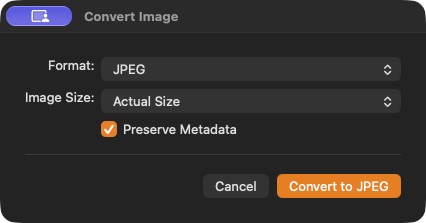
How to trigger actions on selected text and files
For files, start in Finder with the item selected. For text, start with a compatible app and an actual text selection. Services and Shortcuts can accept selected text when configured for that input. Opening a menu without a selection can yield a smaller list or no relevant action at all. Select a short, harmless sentence while you learn the workflow.
An example text task is changing a paragraph into a note or sending selected content to a configured Shortcut. Review what input the workflow receives and where its output goes. Text in a web page and text in an editable field are not interchangeable: an app may let a workflow read a selection while refusing to replace it in place.
Tero’s text and file actions use a separate selection-first panel. Select supported text or downloaded files, press Command-Backslash and choose an available action. Tero is not Apple’s Finder extension menu. It provides another route for correction, translation and supported file work, with limits documented in the getting-started manual.
When comparing these routes, use the same small task. Correct one draft, resize one image or create one reviewed reminder. Count the steps you actually need, including choosing an output and checking it. A workflow that appears shorter in a screenshot may still require setup or a confirmation, and that setup can be worthwhile if you repeat the task often.
What to do when Quick Actions are missing
First check the selection. Use a local regular file with a format the action supports and try selecting it alone. A cloud placeholder that has not downloaded yet, a folder or a mixed group of file types can complicate the test. If a known image works but your other file does not, investigate the source format before changing system settings.
Next check the surface. Finder’s Preview pane is not the Preview app, and selected-text Services are not Finder’s file menu. Reproduce the task in the surface where the workflow was configured to appear. If your instructions were written for another macOS release, use their intended task as a guide while checking current menu labels on your system.
Then check configuration and permissions. Confirm that the extension or custom Shortcut is enabled for the right input. For an app that reads selections, check the permission it explicitly requires. Do not grant broad access to unrelated tools as a generic fix. If the action produces an error, write down the specific step and try a disposable file before repeating the operation on valuable originals.
If the problem survives those checks, compare a second file of the same type and restart the relevant app. Use the vendor’s current documentation for the exact workflow rather than installing random replacement extensions. Our Mac guides separate clipboard, media conversion and selection tasks, and the Tero features page identifies the workflows Tero currently supports.
Questions about Where is Quick Actions on Mac? Finder and text tools
Where is the Quick Actions menu on Mac?
Select a file in Finder, Control-click it and choose Quick Actions. Compatible buttons may also appear at the bottom of Finder’s Preview pane.
Are Finder Preview and the Preview app the same?
No. The Preview pane is part of Finder. Preview is a separate application with its own image and document tools.
Why is a Quick Action missing for selected text?
A selected-text workflow must accept text and be available in the relevant Services or Shortcuts context. Finder actions are primarily selected-file workflows.